How to Summarise a PDF With AI (Step by Step)
Practical ways to summarise PDF files with AI using ChatGPT, Claude, Gemini and NotebookLM, with ready-made prompts and tips for long files and privacy.
Published 6 min read
In this article
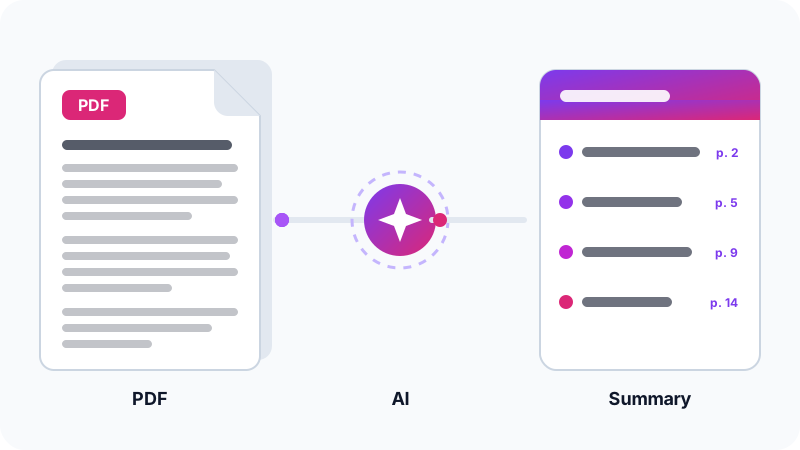
The easiest way to summarise a PDF with AI is to upload it to an assistant like ChatGPT, Claude or Gemini and ask something clear, such as "Summarise this file in 7 bullet points." If you're working with several long files and want answers that point back to where they came from, Google's free NotebookLM is an excellent choice.
In short: upload the file, say what kind of summary you want, how long and for whom, ask for page numbers, check the key points against the original, and never upload confidential documents.
The quick way: upload the file to an AI assistant
The steps are similar in most assistants:
- Open the assistant and sign in.
- Click the attach icon (usually a paperclip or a + sign) next to the message box.
- Pick the PDF from your device and wait for the upload to finish.
- Type your request, for example: "Summarise this file in 7 bullet points for a university student, and give the page number for each point."
- Follow up: "Explain point 3 in more detail" or "What does chapter two say about costs?"
If the tool rejects the file or shows an error, it's usually because the file is larger than the allowed size or has too many pages. Split it into smaller parts with any PDF-splitting tool, or copy just the text you need and paste it into the chat. And if the PDF is password-protected, most tools can't read it until you remove the protection.
The best tools for summarising PDFs
| Tool | Choose it when | Notes |
|---|---|---|
| ChatGPT | You want a quick summary and follow-up questions | File uploads are limited on the free plan |
| Claude | You have long documents or need detailed analysis | Supports file uploads, plus Projects to keep files together |
| Gemini | Your files live in Google Drive | Can reach your Drive files with your permission |
| NotebookLM | You're working across several files and want sourced answers | Free from Google, points to where each answer came from |
| Microsoft Copilot | You use Microsoft's services | Accepts file uploads |
No single tool is always best. For a detailed comparison of the big three assistants, read ChatGPT vs Claude vs Gemini.
Why NotebookLM is different
NotebookLM is a Google tool designed to work on your own sources. You add PDFs, documents or links, and it answers based on those sources, with numbered citations you can click to see the original passage. That makes checking a summary much easier, which is why it's popular with students and researchers.
Ready-made summary prompts
The type of summary should match your goal. Copy whichever fits:
[General summary]
Summarise this file in 7 clear bullet points, then write a
3-line paragraph explaining the main idea. Add the page number
next to each point.

[For studying]
Pull the key definitions and concepts from this chapter into a
table, then write 5 multiple-choice questions with answers.

[Work report]
Summarise this report for a busy manager: key findings, important
numbers, risks and recommendations. 150 words maximum.

[Contract or terms]
What are my obligations in this document? What are the deadlines,
fees and penalties? Quote the original text for each point.
The general rule: say who the summary is for, what shape it should take and how long it should be. We go deeper in how to write good prompts.
Don't stop at the summary: question the file
A summary is only the starting point. The real value is asking specific questions, as if you were talking to someone who has read the whole thing. Examples by situation:
- Students: "Which concepts come up most in this chapter?" or "Explain the chart on page 12 in plain words."
- Employees: "What exactly is being asked of me in this memo, and by when?"
- Researchers: "What's the study's method and sample size? What limitations do the authors mention?"
- Business owners: "Compare the two price quotes in these files in a table."
You can also upload more than one file in the same chat and ask for a comparison, such as two versions of a contract or reports from two different years. In that case, ask it to name the file next to each point so the sources don't get mixed up.
Handling very long files
Books and large reports can exceed what a tool will read, or produce a shallow summary. Try this:
- Summarise in stages: ask for a summary of each chapter separately, then ask for "a summary of the summaries".
- Start with the structure: ask for a list of the file's chapters and what each covers, then pick what matters to you.
- Ask targeted questions: instead of "summarise everything", ask "what does the file say about the budget?"
- Pick the right tool: some tools, such as Claude and NotebookLM, are known for handling long text well. See what Claude offers in our Claude guide.
Scanned PDFs
Some PDFs aren't real text; they're images of pages from a scanner or a phone camera. The giveaway is that you can't select and copy the words.
- Many modern assistants can read text from images, but accuracy drops with poor quality and handwriting.
- If the result is bad, convert the file to text first with an OCR (optical character recognition) tool, then summarise the text.
- Double-check numbers and names in particular; they suffer most from reading errors.
Check the summary before relying on it
AI can get things wrong even when it's reading your own file: it may drop an important condition or add something that isn't there. To reduce that:
- Ask for page numbers or direct quotes for each point, then check the important ones in the original.
- Ask: "Is there anything in the file that contradicts this summary?"
- For important documents, read at least the executive summary and the conclusion yourself.
Privacy: what not to upload
When you upload a file to a cloud service, it's sent to the company's servers and processed there. So:
- Don't upload documents containing sensitive personal data, trade secrets, or anything your employer's policy says not to share.
- Check the tool's privacy settings and turn off training on your data if that option exists.
- At work, ask your IT team which tools are approved.
- If you need to summarise confidential files, consider running an AI model on your own computer so the file never leaves your machine.
Frequently asked questions
Can AI summarise a PDF that isn't in English?
Yes. The major assistants read and summarise files in many languages, and can write the summary in a different language if you ask. Problems usually only appear with poor-quality scans or old fonts that make the text unreadable to software.
How many pages can AI read at once?
It depends on the tool and your plan; there are limits on file size and text length. For very large files, split them into chapters or use a tool built for long documents such as NotebookLM.
Can I rely on the summary instead of reading the file?
For a general overview and quick triage, yes. For important decisions such as contracts, exams or research, use the summary as a map and go back to the key parts of the original.
Is there a way to summarise a PDF without uploading it anywhere?
Yes. You can run an AI model locally on your own computer so the file never leaves it. You'll need a reasonably powerful machine, and quality may be lower than the big cloud services.
Related tutorials
AI tools
How to Use AI to Write and Improve Your CV (Step by Step)
A practical way to use ChatGPT, Claude and Gemini to write your CV, tailor it to a job ad and pass ATS filters, with ready-to-use prompts and mistakes to avoid.
· 6 min read

AI tools
ChatGPT for Beginners: Everything You Need to Know to Get Started
A plain guide to ChatGPT: what it is, how to sign up and start your first chat, free vs paid plans, and how to use it safely and get better answers.
· 6 min read

AI tools
ChatGPT vs Claude vs Gemini: Which One Fits Your Work?
A practical comparison of ChatGPT, Claude and Gemini: what each does best, free and paid plans, and which one to pick for study, writing or coding.
· 6 min read