How to Use AI to Write and Improve Your CV (Step by Step)
A practical way to use ChatGPT, Claude and Gemini to write your CV, tailor it to a job ad and pass ATS filters, with ready-to-use prompts and mistakes to avoid.
Published 6 min read
In this article
- What AI can (and can't) do for your CV
- The right tool for each job
- Step 1: Gather your raw material
- Step 2: Turn duties into achievements
- Step 3: Tailor your CV to the job ad
- Step 4: Write a short professional summary
- Step 5: Format it so tracking systems can read it
- Common mistakes when using AI for your CV
- Final checklist before you hit send
You can use AI tools like ChatGPT, Claude and Gemini to turn your experience into a clear, convincing CV in much less time. You give the tool your real information and the job ad; it helps with wording, structure and the right keywords. Then you review the result and make it sound like you.
In short: collect your real details, ask the AI for strong bullet points with numbers, match them against the job ad, use a simple template, and check every word yourself before sending.
What AI can (and can't) do for your CV
AI is a great writing assistant, but it only knows what you tell it. Here's where it helps most:
- Rewording: turning "I was responsible for social media" into a stronger bullet that starts with an action and ends with a result.
- Tightening: cutting a long paragraph down to two or three bullets.
- Matching to a job: pulling the key skills and terms out of a job ad and comparing them with your CV.
- Translation: converting between languages in a professional hiring tone.
- Cover letters: writing a first draft tailored to each role.
What you should never ask it to do: invent experience, qualifications or numbers. Anything false can come out in an interview or a reference check.
The right tool for each job
| Task | Suggested tools | Note |
|---|---|---|
| Writing bullets and summary | ChatGPT, Claude or Gemini | Free versions are enough |
| Analysing a job ad | ChatGPT or Claude | Paste the full ad text |
| Designing the CV | Google Docs, Word or Canva | Pick a simple template |
| Proofreading | The chat tool, or the checker in Word or Google Docs | Check names and dates by hand |
New to these tools? Start with the ChatGPT beginner's guide, or the Claude guide if you prefer Claude.
Step 1: Gather your raw material
Before opening any AI tool, dump everything about your career into a plain text file. Don't worry about formatting:
- Job titles, company names and dates.
- What you did in each role.
- Achievements with numbers: how many customers, how much time saved, how much sales grew.
- Certificates, courses and technical skills.
- Languages you speak.
The more accurate this list, the better the result. AI polishes what you give it; it can't create something from nothing.
Step 2: Turn duties into achievements
Paste your notes and use a clear prompt like this:
You are an experienced recruiter. Here is my experience in my current role:
[paste duties and achievements]
Turn this into 4 CV bullet points.
Start each bullet with a strong action verb and include measurable results where they exist.
Do not add any facts or numbers that are not in my text.
That last line matters. AI tools sometimes add numbers that sound convincing but aren't real. If you spot a figure you never mentioned, delete it.
To get better at this, read how to write good prompts.
Step 3: Tailor your CV to the job ad
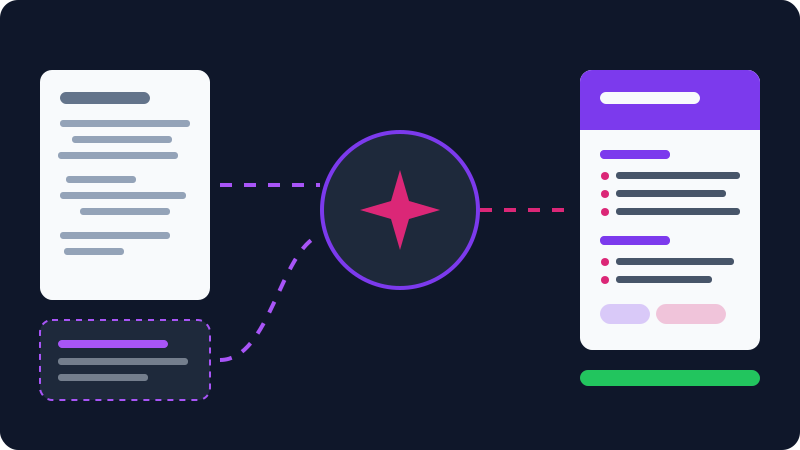
Don't send the same CV everywhere. Copy the job ad and ask:
Here is a job ad: [paste ad]
Here is my CV: [paste CV]
1. List the 10 most important skills and keywords in the ad.
2. Which ones appear in my CV and which are missing?
3. Suggest edits to my summary and bullets to fit this role, without adding experience I don't have.
Now you know what's missing. If you have a skill the ad asks for but you left it out, add it. If you don't have it, leave it out.
Step 4: Write a short professional summary
The summary is the first thing a recruiter reads. Ask the AI for three versions of two to three lines each, pick the one closest to your voice, and edit it. A good summary covers your field, years of experience, your two strongest skills, and the kind of role you want.
Cover letters
Some roles ask for a cover letter as well. Use the same approach: give the tool the job ad and your CV, and ask for something short:
Write a cover letter of no more than 250 words for this role.
Use only the information in my CV.
Mention two achievements that match the ad's requirements, in a professional, plain tone.
Then add at least one sentence in your own words about why you want to work at this particular company. That personal line is what separates your letter from hundreds of near-identical ones.
Before and after
- Before: "Worked on customer service and answered questions."
- After: "Resolved around 40 customer inquiries daily via phone and email, maintaining a high satisfaction rating."
The second version is stronger because it starts with a verb, includes a number and shows a result. Just remember: the number has to be real and come from your experience, not from the AI's imagination.
Step 5: Format it so tracking systems can read it
Many companies filter CVs with an ATS. To stay on the safe side:
- Use a simple single-column layout. Avoid complex tables and text inside images.
- Use standard section headings such as Experience, Education and Skills.
- Save as PDF unless the ad asks for another format.
- Keep it to one page if you have less than roughly ten years of experience.
Free templates in Google Docs or Word are a fine starting point, and Canva works too if you pick one of the plainer designs. If you want to track your applications, the Notion guide shows how to build a simple board.
Common mistakes when using AI for your CV
- Pasting the output as-is. Generic lines like "passionate, hard-working team player" don't set you apart. Replace them with real examples.
- Too many buzzwords. Stacking big phrases makes a CV sound unnatural.
- Sharing sensitive data. There's no need to paste your ID number or full home address into a chat tool. Use placeholders in the draft and add real details only in the final file.
- Skipping the review. Double-check company names, dates and job titles yourself. AI can quietly change them while rewording.
- One CV for every job. Spend five minutes tailoring it for each ad.
Final checklist before you hit send
- Every line is true and you can talk about it in an interview.
- Bullets start with verbs and show results.
- Key terms from the job ad appear wherever they genuinely apply to you.
- No spelling or formatting errors.
- A clear file name, such as
Jane-Smith-CV.pdf. - Contact details are correct and up to date.
Frequently asked questions
Can employers tell my CV was written with AI?
The giveaway isn't the tool, it's generic wording that could describe anyone. If you add real numbers and examples from your own experience and adjust the phrasing to sound like you, the CV reads as personal and credible.
Do I need a paid AI plan to write a good CV?
No. The free versions of ChatGPT, Claude or Gemini are enough to draft and polish bullet points, and you can design the CV for free in Google Docs, Word or Canva.
Should my CV be one page or two?
One page is a good target if you have less than about ten years of experience. With longer or more senior experience, two pages is fine as long as every line earns its place.
What is an ATS and why does it matter?
An Applicant Tracking System is software many companies use to collect, sort and search CVs. A simply formatted CV that uses the same key terms as the job ad is easier for these systems to read.
Related tutorials
AI tools
ChatGPT for Beginners: Everything You Need to Know to Get Started
A plain guide to ChatGPT: what it is, how to sign up and start your first chat, free vs paid plans, and how to use it safely and get better answers.
· 6 min read

AI tools
ChatGPT vs Claude vs Gemini: Which One Fits Your Work?
A practical comparison of ChatGPT, Claude and Gemini: what each does best, free and paid plans, and which one to pick for study, writing or coding.
· 6 min read
AI tools
Claude AI Guide: Features and How It Differs from ChatGPT
A practical guide to Claude by Anthropic: how to get started, key features like Projects, Artifacts and file analysis, and how it compares to ChatGPT.
· 6 min read