Claude AI Guide: Features and How It Differs from ChatGPT
A practical guide to Claude by Anthropic: how to get started, key features like Projects, Artifacts and file analysis, and how it compares to ChatGPT.
Published 6 min read

In this article
Claude is an AI assistant made by Anthropic. You chat with it to write and edit text, summarise documents, explain ideas and help with code. It works much like ChatGPT, but it stands out for handling long documents well and for a calm, well-organised writing style.
In short: sign up at claude.ai, upload files or describe your task clearly, use Projects to keep related work together and Artifacts to see generated content or code live. Pick Claude for long documents and coding; pick ChatGPT if you need image generation.
What is Claude and who makes it?
Claude is a large language model (LLM) developed by Anthropic, a US company focused on AI research and safety. Anthropic releases several models at different sizes, usually in families such as Opus (most capable), Sonnet (balanced) and Haiku (fastest and lightest). Version numbers change often, so don't worry about them much. The app picks a sensible default, and you can switch models if your plan allows it.
You can use Claude through:
- The website at claude.ai in any browser.
- Desktop apps for Windows and macOS.
- Mobile apps for iPhone and Android.
- The API, for developers who want to build Claude into their own apps.
Getting started with Claude, step by step
- Go to claude.ai and sign up with your email or a Google account.
- You may be asked to verify a phone number the first time.
- Type your first message, for example: "Explain the difference between RAM and storage in simple terms."
- To attach a file, click the attachment icon next to the message box or drag the file into the window.
- Start a new chat for each new topic so old instructions don't leak into new tasks.
If Claude isn't available where you live, check the list of supported countries on Anthropic's official site rather than turning to unofficial workarounds.
Claude's key features
Working with files and long documents
Claude can read PDFs, text documents, images and simple spreadsheets, then summarise them or answer questions about them. Its strength here is a large context window, meaning how much text it can keep in mind within one conversation. That makes it a good fit for long reports, contracts and research papers. If that's your main use, see how to summarise PDF files with AI.
Artifacts: content you can see and edit
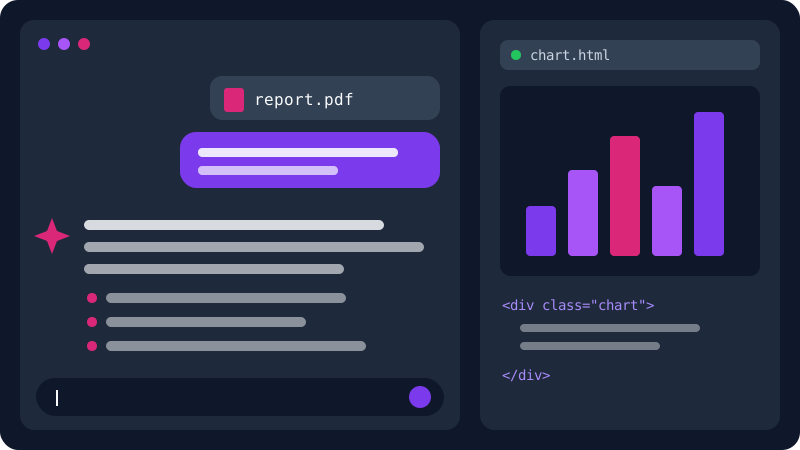
When you ask for something self-contained, like a small web page, a chart or a long document, Claude shows it in a side panel called Artifacts, separate from the chat. You can preview the result, ask for changes, and copy or download it.
Understanding images
You can also upload an image, such as a screenshot of an error, a photo of a handwritten table or a chart, and ask Claude about it. It describes what's in the image, pulls out the text and explains the information. That's handy whenever retyping something by hand would be a pain.
Projects: organised workspaces
Projects let you group chats about one topic together with reference files and standing instructions. For example, create a project called "My blog", upload your style guide, and add an instruction like "Always write in plain, friendly English." Every chat inside that project follows those rules without you repeating them.
Coding
Claude is one of the stronger tools for writing, explaining and debugging code. Paste the error message along with your code and ask it to explain the cause before giving the fix. Developers also get a separate tool called Claude Code, which runs in the terminal and works directly with your project files. For more, read how to use AI to help you code.
Claude vs ChatGPT: the main differences
Both are excellent assistants. The differences show up in the details and in the kind of work you do:
| Claude | ChatGPT | |
|---|---|---|
| Made by | Anthropic | OpenAI |
| Image generation | Not its focus | Built into the app |
| Long documents | A clear strength | Good |
| Writing style | Calm, structured, less hype | Varied, follows your prompt |
| Showing code and content | Artifacts side panel | Canvas editor |
| Free plan | Yes, with a message limit | Yes, with usage limits |
Features in both apps change quickly, so test each one on a real task from your own work before deciding. For a three-way comparison that includes Gemini, see ChatGPT vs Claude vs Gemini.
Tips for better results
- Give context. Instead of "write an email", say "write a short, formal email to my manager asking for two days off next week."
- Say what format you want. A bullet list, a table, one paragraph, or a rough word count.
- Show an example. If you have text in a style you like, paste it and ask Claude to match it.
- Let it ask questions. Add "Ask me for any information you need before you start."
- Check the facts. Claude can get numbers, dates and references wrong, so verify anything important at the source.
These habits work with any AI tool. You'll find them explained with examples in the prompt writing guide.
Practical prompts to try today
- Summarise a report: "Summarise this file in 5 bullet points, then list 3 decisions I should make based on it."
- Improve your writing: "Rewrite this paragraph to be clearer and shorter without changing the meaning, and tell me what you changed."
- Learn something: "Explain what an API is as if I were in high school, then ask me 3 questions to check I understood."
- Plan: "Help me build a weekly plan to learn Excel in one hour a day."
- Debug: "This code throws the error below. Explain the cause first, then suggest a fix."
Each prompt states the task and the shape of the answer you want. That alone makes a noticeable difference to the results.
Free and paid plans
The free plan is enough to try Claude and use it lightly every day, but it caps how many messages you can send before the limit resets. Paid plans raise that cap and unlock extra models and features. Prices depend on the plan and your country and can change, so check the current price on the official pricing page before subscribing.
A practical approach: use the free plan for a couple of weeks. If you keep hitting the limit while doing real work, that's when a subscription starts to make sense.
When should you choose Claude?
Claude is a good choice if your work involves:
- Reading and summarising long documents and reports.
- Structured writing such as articles, reports and formal emails.
- Writing, reviewing and explaining code.
- Building quick prototypes of pages or small tools with Artifacts.
If you rely on image generation, or you already depend on tools in the OpenAI ecosystem, ChatGPT may suit you better. Plenty of people use both and pick whichever fits the task, and that's a perfectly sensible approach.
Frequently asked questions
Is Claude free to use?
Yes. There is a free plan that works well for light daily use, but it has a message limit that resets every few hours. Paid plans raise that limit and add features; prices vary by plan and country, so check the official pricing page.
Can Claude generate images like ChatGPT?
Image generation is not Claude's focus. It works with text, code, and the files and images you upload. It can, however, write code for charts or SVG graphics and show you the result right away.
Can I use Claude on my phone?
Yes. Claude has official apps for iPhone and Android, plus desktop apps for Windows and macOS. Your conversations sync across devices when you sign in with the same account.
Should I share private documents with Claude?
Avoid sharing passwords, bank details, or anything you would not want stored on a third-party service. Review the privacy settings in your account so you understand how your conversations are handled.
Related tutorials

AI tools
How to Use AI to Write and Improve Your CV (Step by Step)
A practical way to use ChatGPT, Claude and Gemini to write your CV, tailor it to a job ad and pass ATS filters, with ready-to-use prompts and mistakes to avoid.
· 6 min read

AI tools
ChatGPT for Beginners: Everything You Need to Know to Get Started
A plain guide to ChatGPT: what it is, how to sign up and start your first chat, free vs paid plans, and how to use it safely and get better answers.
· 6 min read

AI tools
ChatGPT vs Claude vs Gemini: Which One Fits Your Work?
A practical comparison of ChatGPT, Claude and Gemini: what each does best, free and paid plans, and which one to pick for study, writing or coding.
· 6 min read