Notion for Beginners: How to Organise Your Work and Life
A practical beginner's guide to Notion: pages, blocks and the / command, databases and views, templates, and a simple system for tasks and notes.
Published 6 min read
In this article
Notion is an app that puts notes, tasks, documents and databases into one workspace. You build pages out of "blocks" such as text, lists and tables, organise tasks on boards and calendars, and it runs in the browser, on desktop and on your phone with automatic sync.
In short: create a free account, start with a single home page, use the / command to add any type of content, and turn your tasks into a database with a Board view. Start simple and grow the system gradually.
What is Notion, and why do people use it?
Most of us spread our digital lives across lots of apps: notes in one, tasks in another, files somewhere else. Notion's idea is to bring all of it together in one connected place.
Some typical uses:
- Study: lecture notes, a course schedule and exam dates.
- Work: project tracking, process documentation and meeting notes.
- Personal life: a reading list, goals, a budget and travel plans.
When is it not the right fit? If you only jot down quick notes, your phone's built-in notes app is simpler. If you write long formal documents with precise print formatting, Word or Google Docs will serve you better. Notion shines when you want notes, tasks and projects connected in one system.
Getting started: your account and first page
- Go to
notion.comand sign up for free with your email, Google or Apple account. - Install the app if you like. Notion runs on Windows, macOS, iPhone and Android, and in any browser.
- In the sidebar, click the button to create a new page.
- Give it a title, and optionally an emoji icon and a cover image so it stands out.
Every page can hold pages inside it, just like folders. That's what makes organising easy later on.
Blocks and the slash command
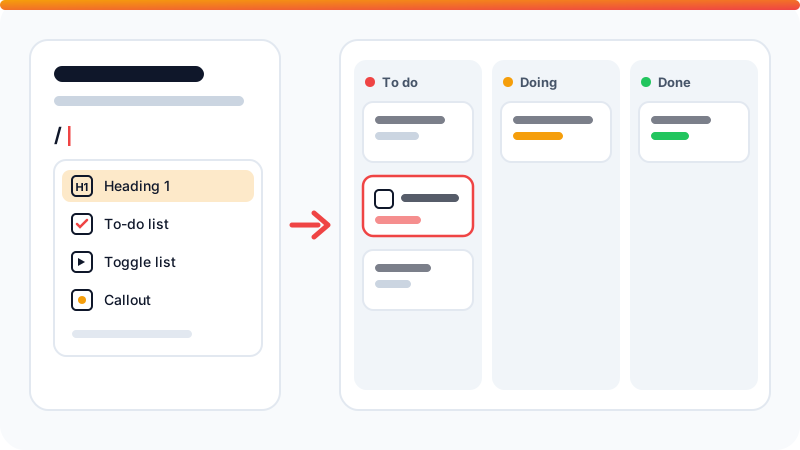
Everything in Notion is a block: a paragraph is a block, a heading is a block, an image is a block. Type / on an empty line to see every block type, then type the first few letters of what you want, such as /todo or /table.
If you know Markdown, these shortcuts work as you type:
| Type | You get |
|---|---|
# then space |
Large heading |
## then space |
Subheading |
- then space |
Bulleted list |
1. then space |
Numbered list |
[] |
To-do checkbox |
> then space |
Toggle list |
--- |
Divider |
@ |
Mention a page, date or person |
[[ |
Link to another page |
You can drag any block by the handle that appears beside it to move it, or drop two blocks side by side to create columns.
Databases: the heart of Notion
A Notion database is a smart table: every row is a full page, and every column is a property such as a date, a status or a priority. The real power is that you can view the same data in several ways without duplicating it.
Example: a task list with a board view
- On a new page, type
/and choose a database with a table view. - Name it "Tasks".
- Add properties: Status for progress, Date for the due date, and Select for priority (High, Medium, Low).
- Add a few tasks as rows.
- Add a new Board view grouped by status. Your tasks appear as cards in columns, and you drag them from one column to the next.
- Add a Calendar view to see tasks laid out by due date.
The most useful property types
- Text and Number: plain text or figures, such as notes or cost.
- Select and Multi-select: pick from a list you define, such as priority or tags.
- Status: a task's progress, perfect for board views.
- Date: a date or date range, with an optional reminder.
- Checkbox: a simple yes/no, such as "Paid".
- URL: a link to a source or file.
- Relation: links a row to a row in another database, such as a task to a project.
- Formula: calculates a value from other properties, such as days remaining.
The most common views are Table, Board, Calendar, List, Gallery and Timeline. Each view can have its own filter, such as "only this week's tasks".
A practical example: a simple system for your life
Don't start with a complicated setup. This simple structure is enough for most people:
- Home page: links to everything below, plus a view of today's tasks.
- Tasks: the database from the previous section.
- Notes: a database with a "Topic" property to categorise notes.
- Goals: one page per goal, linked to the tasks that move it forward with a Relation property.
- Reading list: a database with a Gallery view for books and articles.
Set aside ten minutes at the end of each week to review what you finished and pick next week's priorities. The habit matters more than the tool.
Templates: don't start from scratch
Notion has a large gallery of ready-made templates, official and community-made, for almost anything: study planners, habit trackers, project management, personal budgets. Browse the official template gallery, duplicate a template into your workspace, and adjust it to fit.
A word of advice: elaborate templates are tempting, but they're often abandoned after a week. Pick a simple one where you understand every part.
Sharing and collaboration
- Share a page: the Share button at the top lets you invite people by email and choose what they can do: view, comment or edit.
- Comments: highlight any text to comment on it, and use
@to notify a teammate. - Publish to the web: you can publish a page so anyone with the link can see it, a quick way to share a guide or a CV. Make sure it contains nothing private first.
Tips and common mistakes
- Start small: a home page and a task database are enough for week one.
- Don't nest too deep: three levels is plenty. Quick search (
Ctrl + Pon Windows,Cmd + Pon Mac) beats clicking through deep folders. - Use a database instead of scattered pages: twenty notes in one database are far easier to search and filter than twenty separate pages.
- Clip articles quickly: the Notion Web Clipper saves any web page to your workspace; you'll find it with other picks in the best Chrome extensions for productivity.
- Keep backups: export your workspace regularly and follow our guide to backing up your files.
- Protect your account: turn on two-factor authentication, especially if you keep work data there.
Frequently asked questions
Is Notion free?
Yes. There's a free plan that covers most personal use. Paid plans add features for teams, such as finer permissions, longer page history and bigger file uploads. Prices change, so check Notion's official pricing page before subscribing.
Does Notion support right-to-left languages like Arabic?
You can type Arabic on any page, and recent versions of Notion support right-to-left text direction, which you can switch from the page's options menu (•••). If you don't see the option, update the app.
Can I use Notion offline?
Notion is primarily an online app. In recent versions, the desktop and mobile apps let you mark pages as available offline, and your edits sync when you reconnect.
How do I back up my Notion data?
From any page's options you can export it as Markdown and CSV, HTML or PDF, and workspace owners can export the whole workspace from Settings. Keep a regular copy alongside your other important files.
What's the difference between Notion and Google Docs?
Google Docs is excellent for writing and collaborating on documents. Notion combines documents with databases, task boards and calendars in one place, which makes it better for building a complete system to organise your work.
Related tutorials
Tools & productivity
How to Back Up Your Files Properly (The 3-2-1 Rule)
A practical backup guide: the 3-2-1 rule explained, backup vs sync, and how to set up File History, Time Machine and cloud storage step by step.
· 6 min read
Tools & productivity
Best Chrome Extensions for Productivity (Free and Trusted)
A short list of trusted Google Chrome extensions for productivity: ad blocking, writing, translation, tabs and passwords, plus tips to stay safe.
· 5 min read
Tools & productivity
Best Password Managers: Free and Paid Options Compared
A neutral comparison of well-known password managers, including Bitwarden, 1Password, Proton Pass, Google and Apple, and how to switch over safely.
· 5 min read