Best Password Managers: Free and Paid Options Compared
A neutral comparison of well-known password managers, including Bitwarden, 1Password, Proton Pass, Google and Apple, and how to switch over safely.
Published 5 min read
In this article
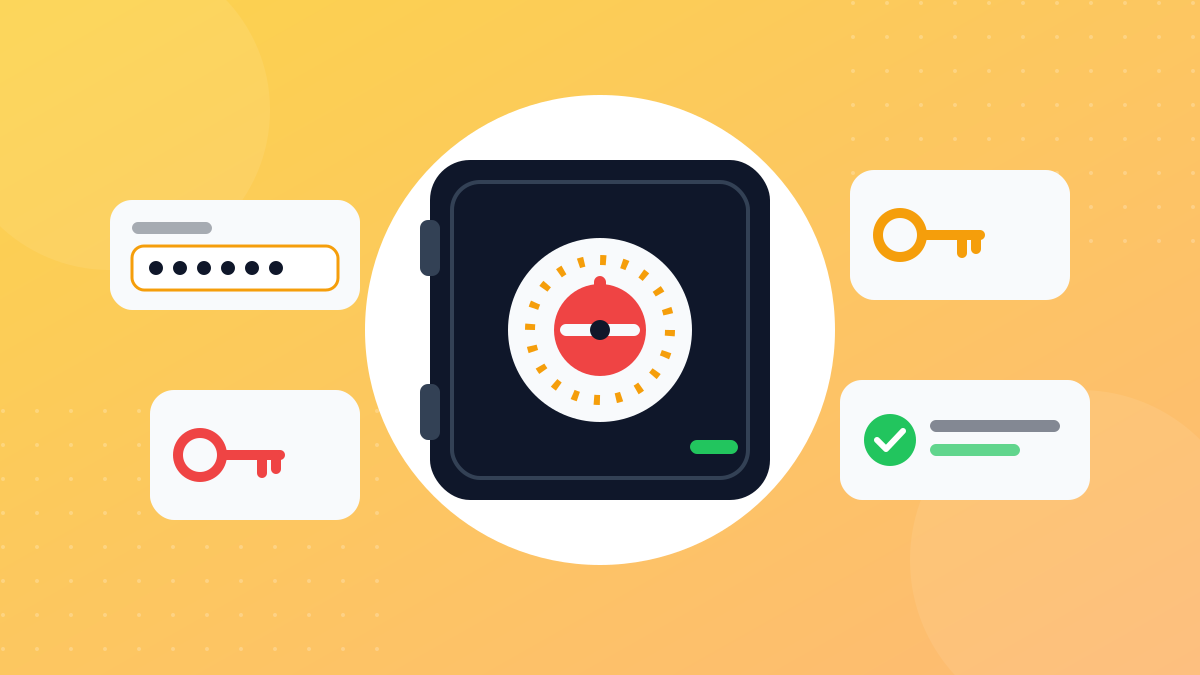
A password manager stores all your passwords in an encrypted vault, generates a strong, different password for every site, and fills it in when you sign in. You only remember one password: your master password. Well-known, trusted options include Bitwarden, 1Password, Proton Pass and KeePassXC, plus the managers built into Google and Apple products.
In short: for a free option that works everywhere, start with Bitwarden; for a polished paid experience, try 1Password; if you're all-in on Apple or only use Chrome, the built-in manager is a fine start. What matters most is using one at all.
Why you need a password manager
Most people use one or two passwords for everything. The problem is that a single site breach lets an attacker try that same password on your email and every other account.
A password manager fixes this:
- A unique password for every site: one leak doesn't spread to your other accounts.
- Long, strong passwords: the manager generates them, so you never have to memorise them.
- Autofill: faster than typing, and it helps you spot fake sites, because the manager won't fill your details on a site that doesn't match the saved address.
- Alerts: many managers warn you about weak, reused or breached passwords.
- More than passwords: you can keep secure notes, such as software licence keys or answers to security questions, inside the encrypted vault instead of a text file on your desktop.
How a password manager works
Good managers use end-to-end encryption (often called zero-knowledge): your vault is encrypted on your device with your master password before it's uploaded for syncing. The company stores an encrypted copy it can't read, and when you open the vault on another device, it's decrypted there.
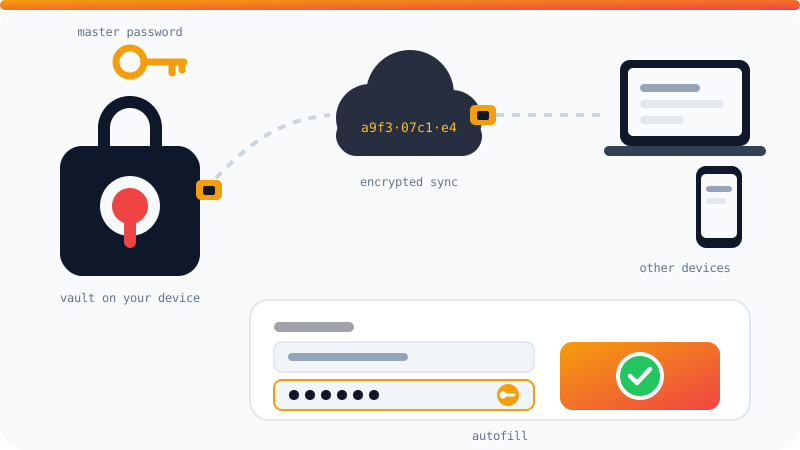
That's exactly why most companies can't recover your master password if you forget it.
What to look for
- Your devices: does it work on Windows, Android, iPhone and every browser you use?
- Encryption model: does it clearly state that your vault is encrypted on your device and unreadable to the company?
- Reputation and transparency: is the code open source, or has it had a published independent security audit?
- Passkey support: increasingly important now that many sites support passkeys.
- Sharing: do you need to share some logins with family or a team?
- Price: is the free plan enough for you?
The best-known options
Bitwarden
Open source, and its free plan allows unlimited passwords on unlimited devices, which is rare. It runs on every major platform and browser. The paid plan usually costs little per year and adds features such as storing 2FA codes and extra security reports. Advanced users can even self-host it.
1Password
One of the most popular paid managers, known for its polished design and ease of use. There's no permanent free plan, but there is a trial. Alongside your master password it uses a Secret Key generated on your device for an extra layer of protection, and its Watchtower feature flags weak and breached passwords. A strong choice for families and teams.
Proton Pass
From Proton, the Swiss company behind Proton Mail. It has a good free plan and stands out for creating email aliases you can use when signing up for sites, so your real address stays private. A good fit if privacy is your priority.
KeePassXC
Free, open source and offline, for Windows, macOS and Linux. It keeps your vault in an encrypted file (.kdbx) on your computer and isn't tied to any company. Syncing is up to you, for example by keeping the file in a cloud storage folder, and on your phone you need a KeePass-compatible app. Ideal if you want full control and don't mind some setup.
Built-in managers: Google and Apple
- Google Password Manager: built into Chrome and Android, and available wherever Chrome runs. Free, with passkey support.
- Apple's Passwords app: built into iPhone, iPad and Mac, synced through iCloud, and usable on Windows via iCloud for Windows, but not on Android.
Their main drawback is being tied to one ecosystem, which makes switching platforms harder.
Quick comparison table
| Manager | Free plan | Open source | Platforms | Best for |
|---|---|---|---|---|
| Bitwarden | Yes | Yes | All major platforms | Most people |
| 1Password | No (trial only) | No | All major platforms | Families and teams |
| Proton Pass | Yes | Yes | All major platforms | Privacy fans |
| KeePassXC | Fully free | Yes | Desktop + compatible apps | Full control |
| Google Password Manager | Free | No | Wherever Chrome runs | Chrome and Android users |
| Apple Passwords | Free | No | Apple devices and Windows | Apple users |
Features and prices change often, so check each official site before you decide.
Get started in five steps
- Install the app from the official site or app store, then add its browser extension. You'll find other useful add-ons in the best Chrome extensions.
- Pick a strong master password: ideally a passphrase of 4 to 6 random, unrelated words, easy to remember and hard to guess. Don't use it anywhere else. An example of the shape only (don't use it):
pencil-orange-cloud-window-mountain. You can also let the manager generate a random passphrase for you. - Turn on 2FA for the password manager account itself. See our guide to two-factor authentication.
- Bring your old passwords over: export them from your browser as a CSV file, import that into the manager, then delete the CSV right away, because it isn't encrypted.
- Replace weak passwords gradually: start with email and banking, and use the generator every time you visit a site.
Common mistakes
- A weak master password: it unlocks everything, so don't make it short or predictable.
- Forgetting the master password: write it down and keep it somewhere safe until it becomes second nature.
- Saving passwords in two places: after switching, turn off password saving in your browser so logins don't get split between two tools.
- Skipping backups: export a copy of your vault now and then, choosing an encrypted format if your manager offers one, as part of your plan to back up your files.
Frequently asked questions
What happens if I forget my master password?
With most password managers the company can't recover it, because it never knows it. Write it down and keep it somewhere safe, and set up whatever recovery options your manager offers, such as signing in from a trusted device or an emergency contact.
Isn't keeping all my passwords in one place risky?
The bigger risk is reusing the same password across many sites. A password manager encrypts your vault with your master password on your device, and with a strong master password plus 2FA it is far safer than remembering weak passwords.
Is my browser's built-in password manager enough?
For many people, yes, especially if all their devices are on one platform. Standalone managers pull ahead when you mix operating systems and browsers, or need to share passwords with family.
Do I need to pay for a password manager?
No. Bitwarden, Proton Pass, KeePassXC and the Google and Apple managers all offer solid free use. Paid plans add things like family sharing, breach monitoring and file storage, and prices vary, so check before subscribing.
Do password manager companies get hacked?
It has happened, which is why good managers use encryption that makes a stolen vault unreadable without your master password. The strength of your master password is your most important line of defence.
Related tutorials
Tools & productivity
How to Back Up Your Files Properly (The 3-2-1 Rule)
A practical backup guide: the 3-2-1 rule explained, backup vs sync, and how to set up File History, Time Machine and cloud storage step by step.
· 6 min read
Tools & productivity
Best Chrome Extensions for Productivity (Free and Trusted)
A short list of trusted Google Chrome extensions for productivity: ad blocking, writing, translation, tabs and passwords, plus tips to stay safe.
· 5 min read
Tools & productivity
The 10 Most Important Excel Functions (With Examples)
The Excel functions you'll use most, with ready-to-copy examples: SUM, AVERAGE, IF, COUNTIF, SUMIFS, VLOOKUP, XLOOKUP and IFERROR, plus common errors.
· 6 min read