How to Back Up Your Files Properly (The 3-2-1 Rule)
A practical backup guide: the 3-2-1 rule explained, backup vs sync, and how to set up File History, Time Machine and cloud storage step by step.
Published 6 min read
In this article
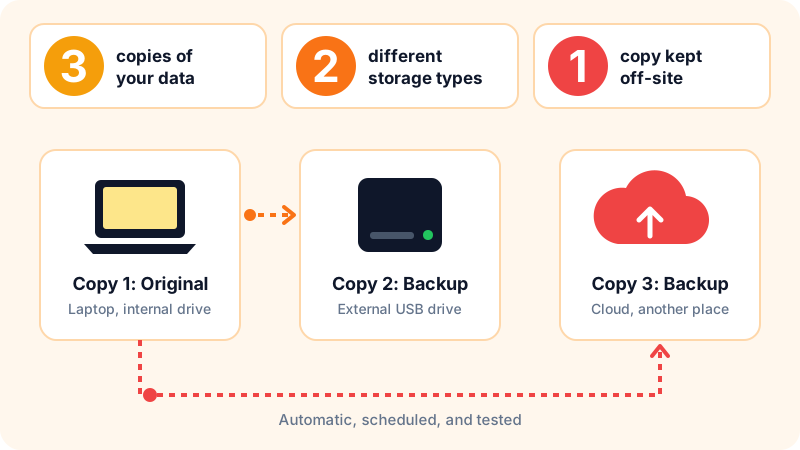
A proper backup follows the 3-2-1 rule: keep three copies of your data, on two different types of storage, with at least one copy off-site, such as in the cloud. In practice that means your original files on your computer, one copy on an external drive, and one copy in the cloud, all running automatically.
In short: turn on File History (Windows) or Time Machine (Mac) with an external drive, add a cloud copy, and test restoring a file every so often to make sure it all works.
What is the 3-2-1 rule?
It's a simple rule that professionals have used for years because it covers most of the ways data gets lost:
- 3 copies: the original you work on, plus two backups.
- 2 different storage types: for example your laptop's internal drive and an external USB drive. If one type fails, the other survives.
- 1 copy off-site: in the cloud or at another address. This protects you from theft, fire and water damage, which hit every device in the same place at once.
The idea is that losing your data should take several disasters at the same time, not just one failed drive.
Backup vs sync: they're not the same
Many people think Google Drive, OneDrive or Dropbox is a backup. At heart, they are sync services:
- Sync keeps the same file identical across all your devices. Delete or corrupt it on one device and it's deleted or corrupted everywhere.
- Backup keeps a separate copy, usually with older versions, so you can go back to last week's file.
The big sync services do offer a recycle bin and version history, but only for a limited time that depends on the service and your plan. Treat them as one part of your plan, not the whole thing.
What should you back up?
Focus on what you can't replace. Apps can be reinstalled; your photos and documents can't:
- Your Documents, Desktop, Pictures and Videos folders.
- Work, study and project files.
- Browser bookmarks and settings: the easiest way to keep them is to sign in to your browser account and turn on sync, so they come back on any new computer.
- Email in services like Gmail and Outlook already lives on the provider's servers, but save important attachments you rely on to a folder on your computer so they end up in your backup too.
- If you write code, push your projects to GitHub as well. Our Git and GitHub step-by-step guide shows you how.
- Backup codes for two-factor authentication. Store them somewhere safe and separate; they're how you get back into your account if you lose your phone. See our guide to two-factor authentication.
Don't keep your passwords in a plain text file inside your backup. Use a password manager instead, which stores them encrypted and synced.
The local copy: an external drive
Start by picking the right drive. An external HDD is cheaper per terabyte and perfectly fine for backups, while an external SSD is faster, lighter and better at surviving a drop, but costs more. Choose a capacity clearly larger than your current files, because backup tools keep older versions and need room for them. Ideally, use the drive only for backups, not for carrying files around every day.
On Windows: File History
File History is built into Windows 10 and 11. It keeps copies of your main folders, such as Documents, Pictures and Desktop, and saves older versions of every file.
- Plug in your external drive.
- Type "File History" in the Start menu and open it.
- Select your external drive and click Turn on.
- In the advanced settings you can choose how often it saves copies and how long to keep old versions.
To get a file back later, open File History and choose Restore personal files, then move between dates until you find the version you want.
On Mac: Time Machine
- Plug in your external drive.
- Open System Settings, then General, then Time Machine.
- Add the drive as a backup disk and turn on the option to encrypt backups.
Time Machine makes automatic backups every hour while the drive is connected, and deletes the oldest ones when the drive fills up.
The off-site copy: cloud storage
The cloud is the easiest way to get your "one copy off-site". Roughly what the free plans offer at the time of writing:
| Service | Free storage | Note |
|---|---|---|
| Google Drive | 15 GB | Shared with Gmail and Google Photos |
| OneDrive | 5 GB | Built into Windows |
| iCloud | 5 GB | Built into iPhone and Mac |
| Dropbox Basic | 2 GB | Fine for small files |
If your files don't fit, paid plans usually start at a small monthly fee. Check the current price on each service's website.
- Windows 11 includes a Windows Backup app that backs up your folders and settings to your OneDrive account.
- On iPhone, turn on iCloud Backup. On Android, turn on backup to your Google account in Settings.
Protect your backups
Your backup holds your whole digital life, so guard it well:
- Turn on two-factor authentication for your cloud account. Anyone who gets in can see all your files.
- Encrypt your external drive where you can: Time Machine has a built-in encryption option, and on Windows you can use BitLocker if your edition of Windows supports it.
- Unplug the drive after backing up: ransomware can encrypt any drive connected to your computer, and the disconnected copy is the one that saves you.
- Don't always keep the drive next to your laptop: if your bag gets stolen with both inside, you've lost both copies.
Test your restores and stick to a schedule
A backup you've never restored from might not work when you need it. About once a month:
- Pick a random file and restore it from File History, Time Machine or the cloud.
- Open it and check it's intact.
- Look at the date of the latest backup. If it's old, something has stopped working and needs fixing.
A starter plan you can follow today
- Today: turn on cloud sync for your Documents and Pictures folders.
- This week: buy an external drive and set up File History or Time Machine.
- Every month: test restoring one file.
- Before any big change, such as resetting Windows or swapping your drive, take a full backup and check it. If you're doing that to make your computer faster, read how to speed up a slow laptop first.
Frequently asked questions
Is Google Drive or OneDrive enough as a backup?
It's a good off-site copy, but it isn't enough on its own. Sync services copy deletions and changes to all your devices, so add a second copy on an external drive to follow the 3-2-1 rule.
How often should I back up?
Make it automatic wherever you can: File History and Time Machine run every hour by default while the drive is connected. If you plug in a drive manually, once a week is a sensible minimum for files that change often.
Should I buy an HDD or an SSD for backups?
An external HDD is cheaper per terabyte and fine for large backups. An SSD is faster, lighter and handles knocks better, but costs more. For most people, an external HDD around twice the size of their files is plenty.
Will a backup protect me from ransomware?
Yes, as long as one copy isn't connected to your computer when the attack happens, because ransomware can encrypt any drive that's plugged in. Disconnect your external drive after each backup and use services that keep previous file versions.
Related tutorials
Tools & productivity
Best Chrome Extensions for Productivity (Free and Trusted)
A short list of trusted Google Chrome extensions for productivity: ad blocking, writing, translation, tabs and passwords, plus tips to stay safe.
· 5 min read
Tools & productivity
Best Password Managers: Free and Paid Options Compared
A neutral comparison of well-known password managers, including Bitwarden, 1Password, Proton Pass, Google and Apple, and how to switch over safely.
· 5 min read

Tools & productivity
The 10 Most Important Excel Functions (With Examples)
The Excel functions you'll use most, with ready-to-copy examples: SUM, AVERAGE, IF, COUNTIF, SUMIFS, VLOOKUP, XLOOKUP and IFERROR, plus common errors.
· 6 min read