Best Chrome Extensions for Productivity (Free and Trusted)
A short list of trusted Google Chrome extensions for productivity: ad blocking, writing, translation, tabs and passwords, plus tips to stay safe.
Published 5 min read
In this article
The best Chrome extensions for productivity solve a real problem for you without asking for more access than they need. This list sticks to well-known extensions from reputable developers: ad blocking, better writing, translation, tab management, saving ideas and managing passwords.
In short: install only from the official Chrome Web Store, keep three or four extensions you actually use, and check each one's permissions, setting site access to "on click" wherever you can.
How to install an extension the right way
- Open the official store at
chromewebstore.google.com. - Search for the extension and check the developer name, the number of reviews and when it was last updated.
- Click the button to add it to Chrome, and read the permissions dialog before you confirm.
- Click the puzzle-piece icon in the toolbar and pin the extensions you use often.
To manage your extensions later, type chrome://extensions into the address bar. From there you can:
- Pause an extension with the small toggle next to it, without removing it.
- Remove an extension completely.
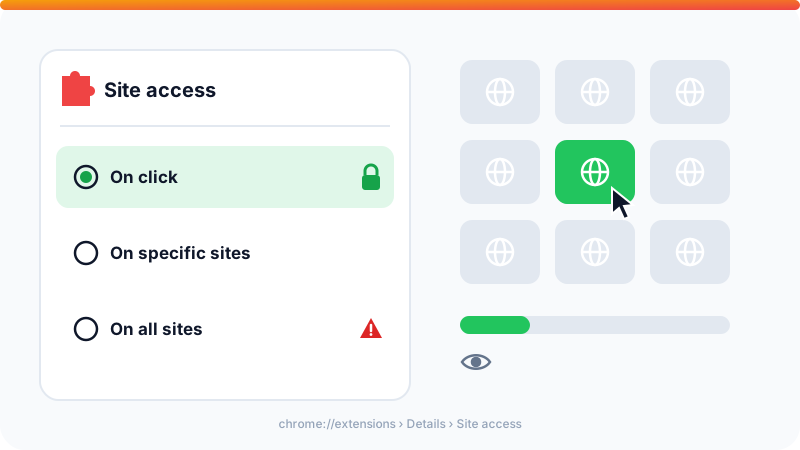
- Open its details to see what permissions it has and change its site access.
How many should you have? There's no magic number, but each one uses memory and asks for access. If you haven't used an extension in weeks, remove it.
Before adding anything, remember that Chrome already has plenty built in: tab groups, the reading list, and Memory Saver in the Performance settings, which puts inactive tabs to sleep to free up memory. You may not need an extension at all.
Blocking ads and trackers
uBlock Origin Lite
One of the best-known ad and tracker blockers, and the modern version of uBlock Origin built for Chrome's new extension platform. Pages get lighter and load faster, and you're tracked less. It's free and open source.
Tip: if a site you like depends on ads, add it to the allow list to support it.
Writing and translation
Grammarly
Catches spelling and grammar mistakes in English and suggests clearer phrasing, right inside Gmail and other sites. There's a free plan and a paid plan with extra features. It works for English, not Arabic.
LanguageTool
A Grammarly alternative that supports several languages and has a free plan. Check the supported languages on its site before relying on it for a particular language.
Google Translate
Google's official extension. Select any text and click the icon to see a translation without leaving the page, or translate the whole page.
Writing extensions read what you type in order to correct it. Don't rely on them when typing passwords or sensitive data, and turn them off on specific sites from their settings.
Tabs and focus
OneTab
If you live with dozens of open tabs, OneTab collapses them into a single page of links with one click, which cuts memory use. You can restore one tab or the whole group later.
Dark Reader
Turns any website dark and lets you tune brightness and contrast per site. Easy on the eyes at night, and open source.
Saving ideas and tasks
Notion Web Clipper
Notion's official extension saves any page or article to your workspace in one click. It's handy for building a library of sources for research or study. New to Notion? Read our Notion guide.
Todoist
The extension for the popular to-do app. Add a task from any page, or save the page itself as a task to come back to later.
Loom
Records your screen, voice and webcam and gives you a link to share right away. Great for showing a teammate a problem instead of writing a long message.
Passwords
Bitwarden
An open-source password manager with a generous free plan. It generates strong passwords, fills them in on websites and syncs across all your devices. Other well-known options such as 1Password are compared in the best password managers.
A password manager extension is one of the most important things you'll install, so make sure it's the official one from the actual developer.
For developers
React Developer Tools
The official extension from the React team. It adds tabs to DevTools for inspecting components and their state. And you don't need an extension to audit page speed: Lighthouse is already built into Chrome DevTools.
Quick summary table
| Extension | What it's for | Price |
|---|---|---|
| uBlock Origin Lite | Blocking ads and trackers | Free |
| Grammarly | English writing checks | Free + paid plan |
| LanguageTool | Multi-language writing checks | Free + paid plan |
| Google Translate | Translating text and pages | Free |
| OneTab | Collapsing tabs | Free |
| Dark Reader | Dark mode | Free |
| Notion Web Clipper | Saving pages to Notion | Free |
| Todoist | Task management | Free + paid plan |
| Loom | Screen recording | Free + paid plans |
| Bitwarden | Password management | Free + paid plan |
Plans and prices change, so check each service's pricing page before you subscribe.
Safety and permissions: read before you click
An extension runs inside your browser, and some can see everything you do online. So:
- Read the permissions dialog. A line like "Read and change all your data on all websites" means the extension can read and modify every site you visit. That's expected for an ad blocker, but odd for a calculator.
- Limit site access. On the extension's details page, under Site access, you can choose to run it only when you click it (On click), on specific sites, or on all sites.
- Be wary of unknown extensions. Some extensions get sold to new owners who add ads or tracking. If an extension suddenly behaves differently, remove it.
- Review your extensions regularly. Open
chrome://extensionsand remove anything you haven't used in a month. Chrome's Safety Check in Settings also flags extensions that were taken down from the store. - Protect your Google account itself. Turn on two-factor authentication so no one can push extensions to your synced profile.
If you use Chrome on a work computer, some extensions may be blocked or installed by your IT team. Follow your company's policy, and don't install personal extensions on your work profile.
The simple rule: every extra extension is another door into your data. Install only what you need, from developers you know.
Frequently asked questions
Do extensions slow down Chrome?
Every extension uses some memory and CPU, and some are heavier than others. Open Chrome's Task Manager with Shift + Esc on Windows to see what each one uses, and remove the ones you don't need.
Why can't I find uBlock Origin for Chrome anymore?
Chrome ended support for extensions built on the older Manifest V2 system, which included the original uBlock Origin. The same developer offers uBlock Origin Lite, built for the newer Manifest V3, and that is the version available in the Chrome Web Store.
Do Chrome extensions work on my phone?
No. Chrome on Android and iPhone does not support installing extensions. These extensions only work in desktop Chrome.
Can I install these extensions in Edge or Brave?
Usually, yes. Chromium-based browsers such as Microsoft Edge and Brave can install most extensions from the Chrome Web Store, though Edge may ask you to allow extensions from other stores first.
Related tutorials
Tools & productivity
How to Back Up Your Files Properly (The 3-2-1 Rule)
A practical backup guide: the 3-2-1 rule explained, backup vs sync, and how to set up File History, Time Machine and cloud storage step by step.
· 6 min read
Tools & productivity
Best Password Managers: Free and Paid Options Compared
A neutral comparison of well-known password managers, including Bitwarden, 1Password, Proton Pass, Google and Apple, and how to switch over safely.
· 5 min read
Tools & productivity
The 10 Most Important Excel Functions (With Examples)
The Excel functions you'll use most, with ready-to-copy examples: SUM, AVERAGE, IF, COUNTIF, SUMIFS, VLOOKUP, XLOOKUP and IFERROR, plus common errors.
· 6 min read