Docker for Beginners: What It Is and How to Use It Step by Step
A beginner-friendly Docker guide: what images and containers are, how to install Docker, the key commands, and how to build your first image.
Published 6 min read
In this article
Docker is a tool that packages an application together with everything it needs to run (code, runtime, libraries and settings) into a single unit called a container. A container runs the same way on your laptop, a colleague's computer or a cloud server, which removes the classic "it works on my machine" problem.
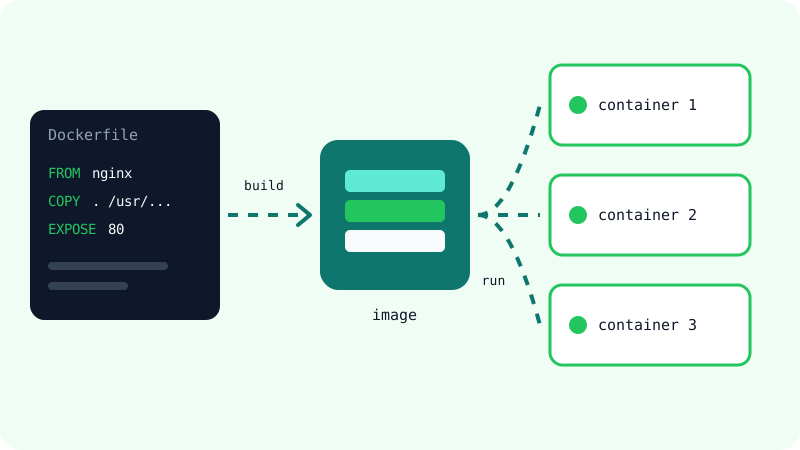
In short: you describe your app in a Dockerfile, build it into an image, then start as many containers from that image as you need with docker run.
The three words you need to know
Most of Docker makes sense once you understand three terms:
- Image: a read-only template that contains your app and its dependencies. Think of it as a recipe, or a class in programming.
- Container: a running instance of an image. You can start many containers from one image, just as you can cook the same recipe many times.
- Dockerfile: a plain text file with instructions for building an image, such as "start from this base image, copy my files, run this command".
Images are shared through registries. The best known is Docker Hub, which hosts official images for popular software such as nginx, postgres, python and node. Prefer images marked as official or from verified publishers, because they are maintained and regularly updated.
Why developers use Docker
Docker has become a standard tool in web development for a few practical reasons:
- Same environment everywhere: the container includes the exact versions your app needs, so development, testing and production match.
- Fast setup: a new team member can run the whole project with one or two commands instead of installing everything manually.
- Clean computer: you can try a database or a new language version in a container, then delete it without leaving anything behind.
- Easy deployment: most cloud platforms can run containers directly. If you're new to the cloud, read our explanation of what cloud computing is.
Docker is especially common on the backend, where apps depend on servers, databases and specific runtime versions. Our guide to frontend vs backend explains that difference.
Containers vs virtual machines
Containers are often compared with virtual machines (VMs). Both isolate software, but they work differently:
| Container | Virtual machine | |
|---|---|---|
| What it includes | The app and its dependencies | A full operating system plus the app |
| Operating system | Shares the host's kernel | Runs its own kernel |
| Startup time | Usually seconds or less | Usually much longer |
| Size | Often megabytes to a few hundred megabytes | Often several gigabytes |
| Typical use | Running apps and services | Running a different OS or full isolation |
Because containers share the host's kernel, they are lighter and start faster. VMs give stronger isolation and can run a completely different operating system.
How to install Docker
Always install Docker from the official website, docs.docker.com.
- Windows and macOS: install Docker Desktop. On Windows it uses WSL 2 (Windows Subsystem for Linux), which the installer can help you enable. Docker Desktop is free for personal use and small businesses; larger organisations need a paid plan.
- Linux: install Docker Engine using the instructions for your distribution in the official documentation.
After installing, open a terminal and check that everything works:
docker --version
docker run hello-world
The hello-world image prints a short message confirming that Docker can download images and run containers.
Your first real container
Let's run a real web server. This command starts the official nginx image in the background and makes it available on port 8080 of your computer:
docker run -d -p 8080:80 --name web nginx
What each part means:
-druns the container in the background (detached).-p 8080:80maps port 8080 on your computer to port 80 inside the container.--name webgives the container a friendly name.nginxis the image. If it's not on your computer yet, Docker downloads it from Docker Hub first.
Open http://localhost:8080 in your browser and you'll see the nginx welcome page. Here's what the full session looks like in a terminal:
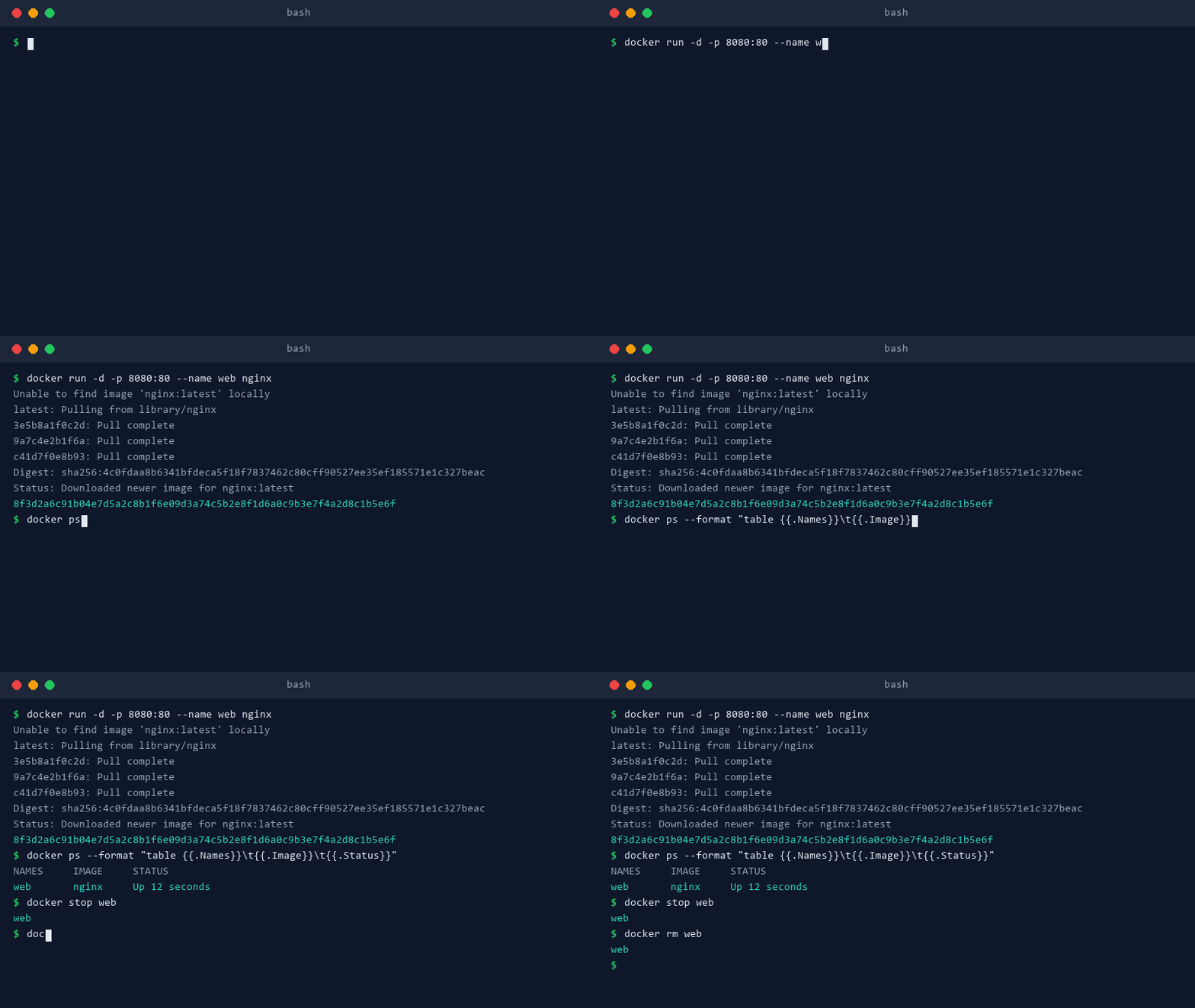
The demo uses docker ps --format only to show fewer columns; plain docker ps works the same way. These are the commands you'll use most often:
| Command | What it does |
|---|---|
docker ps |
List running containers |
docker ps -a |
List all containers, including stopped ones |
docker images |
List images on your computer |
docker logs web |
Show a container's output |
docker exec -it web sh |
Open a shell inside a running container |
docker stop web |
Stop a container |
docker rm web |
Delete a stopped container |
docker rmi nginx |
Delete an image |
Build your own image with a Dockerfile
Running other people's images is useful, but the real power comes from packaging your own app. Say you have a folder with a simple static website (an index.html and a style.css). Create a file named Dockerfile (no extension) in the same folder:
FROM nginx:alpine
COPY . /usr/share/nginx/html
FROM nginx:alpinestarts from the official nginx image, using its small Alpine Linux variant.COPY . /usr/share/nginx/htmlcopies your files into the folder nginx serves by default.
Now build the image and run it:
docker build -t my-site .
docker run -d -p 8080:80 --name my-site my-site
The -t my-site option names (tags) the image, and the . tells Docker to use the current folder as the build context. Every time you change your files, rebuild the image and start a new container.
Add a .dockerignore file to keep unnecessary files (such as .git or node_modules) out of the image. It works much like .gitignore; if you haven't used Git yet, see our Git and GitHub guide.
Running several containers with Docker Compose
Real apps often need more than one container, for example a web app plus a database. Docker Compose lets you describe them all in one compose.yaml file:
services:
  web:
    image: nginx:alpine
    ports:
      - "8080:80"
  db:
    image: postgres:16
    environment:
      POSTGRES_PASSWORD: example
    volumes:
      - db-data:/var/lib/postgresql/data

volumes:
  db-data:
Then start or stop everything with one command:
docker compose up -d
docker compose down
The db-data volume keeps the database files even if the container is removed. Use a real, strong password outside of local testing, and never commit secrets to a public repository.
Beginner tips and common mistakes
- Use specific tags.
postgres:16is more predictable thanpostgres:latest, which can change under you. - Don't store important data only inside a container. Use volumes for anything you want to keep.
- Clean up regularly. Old images and stopped containers take disk space.
docker system pruneremoves unused data, but read its warning before confirming. - Check for port conflicts. If port 8080 is already in use, choose another, such as
-p 8081:80. - Only use trusted images. Stick to official images and verified publishers, and avoid random images you can't inspect.
Start by running a few official images, then containerise a small project of your own. After a couple of tries, build, run and compose up will feel natural.
Frequently asked questions
Is Docker free to use?
Docker Engine, the core that runs containers on Linux, is open source and free. Docker Desktop, the app for Windows and macOS, is free for personal use, education and small businesses, while larger companies need a paid subscription. Check Docker's current terms for the exact conditions.
Do I need Linux to use Docker?
No. On Windows and macOS you install Docker Desktop, which runs a lightweight Linux environment in the background for you. On Windows it uses WSL 2, so you may be asked to enable it during installation.
What's the difference between docker stop and docker rm?
docker stop shuts down a running container but keeps it, so you can start it again later. docker rm deletes a stopped container completely. Removing a container doesn't delete the image it was created from.
Will I lose my data when I delete a container?
Yes, anything written inside the container's own filesystem is lost when the container is removed. To keep data such as a database's files, store it in a Docker volume or a folder on your computer that you mount into the container.
Related tutorials
Websites & hosting
How to Build Your Own Website from Scratch with No Experience
A beginner's step-by-step guide to building your first website with HTML and CSS, testing it on your computer, and publishing it online for free.
· 5 min read
Websites & hosting
How to Connect Your Domain to Cloudflare Pages (Step by Step)
Connect a Namecheap domain to a Cloudflare Pages site: add the site to Cloudflare, switch nameservers, attach the custom domain and redirect www.
· 6 min read
Websites & hosting
Best Free Website Hosting: Cloudflare Pages, GitHub Pages, Netlify and Vercel Compared
Compare the best free hosting for static sites, including GitHub Pages, Cloudflare Pages, Netlify and Vercel, and learn which one suits your project.
· 6 min read