Best Free Translation Tools: Google Translate, DeepL, Microsoft Translator and AI
Compare Google Translate, DeepL, Microsoft Translator and AI chatbots, with tips for more accurate translations and for keeping private text safe.
Published 5 min read
In this article
The best free translation tools are Google Translate for the widest language coverage and extra features like camera translation, DeepL for natural-sounding text in the languages it supports, Microsoft Translator for conversations and Microsoft apps, and AI chatbots like ChatGPT, Claude and Gemini when tone and context matter. All of them are free to start, but none is perfect, so important text always needs a human check.
In short: use Google Translate for everyday and on-the-go needs, try DeepL for longer texts, use an AI chatbot when you need a specific tone, and never paste confidential or personal data into a free translator.
How to choose a translation tool
Ask yourself four questions:
- Which languages? Not every tool supports every pair, and quality varies a lot between pairs.
- What kind of text? A menu, an email, a legal contract and a marketing slogan need different care.
- Where are you? At a desk with a document, or on the street with your phone?
- How sensitive is it? Personal and confidential text needs extra caution, as we explain below.
In practice, many people keep two tools: one on the phone for quick lookups and travel, and one on the computer for longer texts and documents.
Google Translate: the most versatile
Google Translate is free on the web at translate.google.com and as a mobile app, and it supports far more languages than any other tool here.
What you can do with it:
- Text: type or paste text, with alternative translations for single words.
- Documents: upload common file formats, such as Word or PDF, on the website.
- Websites: translate whole web pages; the Chrome browser can offer to do this for you.
- Camera: point your phone at a sign, menu or label to translate it on screen.
- Conversation: speak with someone in another language, with the app translating both sides.
- Offline: download languages in the app for use without internet.
Its weak point is that longer or more nuanced texts can come out literal or slightly unnatural, especially for idioms.
DeepL: natural-sounding text
DeepL has a reputation for smooth, natural translations, particularly between European languages. It supports Arabic, but its language list is much shorter than Google's, so check that your pair is available.
- Free version: translate text and a limited number of documents, with limits on length.
- Paid plans (DeepL Pro): higher limits, more document translations, and stronger data protection commitments.
- Useful extras: you can click a word in the translation to see alternatives, set formal or informal tone for some languages, and use DeepL Write to polish text in a handful of languages, including English. The same company also runs Linguee, a dictionary that shows words inside real translated sentences.
Microsoft Translator: conversations and Office
Microsoft Translator is free on the web (through Bing) and as a mobile app, with offline language downloads and conversation features for talking with someone in another language.
Its biggest advantage is integration: the same translation technology powers the built-in page translation in the Microsoft Edge browser and the translate features in Microsoft Office apps such as Word, so you can often translate without leaving the program you are using.
AI chatbots: ChatGPT, Claude and Gemini
General AI assistants are not dedicated translators, but they are very good at it, especially when you give instructions:
Translate this email into English. Keep it polite and professional,
suitable for a client. Keep the names and numbers exactly as they are.
If a phrase has no direct equivalent, choose the natural English
expression and tell me what you changed.
Their strengths are control over tone and audience, explaining their choices, and adapting text instead of translating word by word. Their weaknesses: they are slower for quick lookups, and in long texts they can occasionally skip a sentence, add something, or "improve" your meaning. Compare the source and the translation paragraph by paragraph. To pick an assistant, see ChatGPT vs Claude vs Gemini. If you are also using AI to learn the language itself, read how to learn a language with ChatGPT.
Quick comparison
| Tool | Best for | Free version | Offline | Watch out for |
|---|---|---|---|---|
| Google Translate | Most languages, travel, camera, websites | Yes | Yes, in the app | Literal results in long texts |
| DeepL | Natural-sounding documents and emails | Yes, with limits | Generally needs internet | Shorter language list |
| Microsoft Translator | Conversations, Edge and Office users | Yes | Yes, in the app | Fewer languages than Google |
| AI chatbots | Tone, context, explanations | Yes, with message limits | No | Can skip or change content |
Features and limits change over time, so check each tool's official site for the current details.
Privacy: be careful what you paste
Anything you paste into an online translator is sent to that company's servers. Free services may store what you submit and, depending on their terms, use it to improve their products. Paid business plans often come with stronger guarantees, but read the privacy terms rather than assuming.
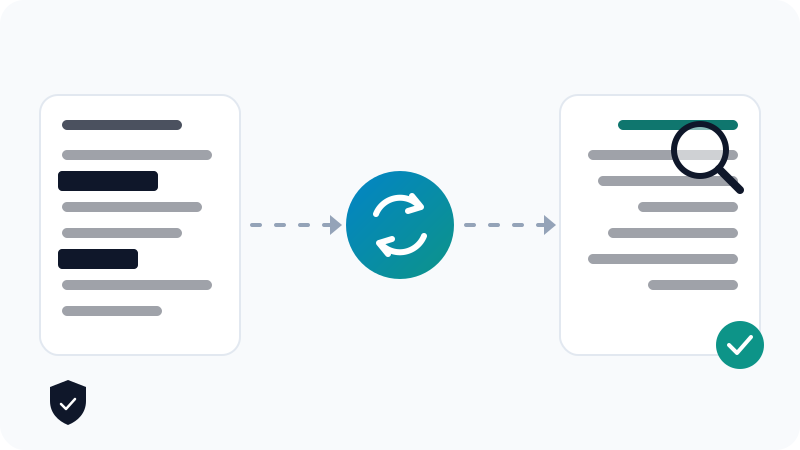
Before you translate:
- Remove or replace sensitive details: names, ID numbers, account numbers, addresses and phone numbers. Put them back after translating.
- Don't paste confidential work material unless your employer has approved the tool.
- Official documents: use the free tool only to understand them; for submissions, use a certified translator.
- Need to keep everything on your device? Some AI models can run fully offline on your own computer, as explained in how to run an AI model locally.
Tips for better translations
- Write short, clear sentences. Long sentences with many clauses confuse every tool.
- Avoid slang and idioms in the source when you can, or explain them.
- Back-translate: translate the result back into your language. If the meaning changed, rewrite the source.
- Compare two tools for anything important; differences show you where to look closely.
- Keep a small glossary of key terms and ask AI tools to use it consistently.
- Have a human review anything legal, medical, financial or public-facing.
Frequently asked questions
Which translation tool is the most accurate?
It depends on the language pair and the type of text. DeepL often produces very natural text for the languages it supports, Google Translate covers far more languages, and AI chatbots handle tone and context well. Test the same paragraph in two tools and compare.
Can I translate without an internet connection?
Yes. The Google Translate and Microsoft Translator mobile apps let you download languages for offline use. Offline translations are usually a bit less accurate than online ones, but they are very handy when travelling.
Can I use a free translator for official documents?
Use it to understand a document, not to produce an official version. Authorities and universities often require a certified or sworn translator, and official documents usually contain personal data you shouldn't upload to free services.
Can these tools translate a whole file?
Google Translate's website and DeepL both accept common file types such as Word and PDF, within size and usage limits on the free versions. AI chatbots also accept uploaded files, but check that nothing was skipped or summarised.
Related tutorials
Language learning
IELTS vs TOEFL vs Duolingo English Test: Which One Should You Take?
Compare IELTS, TOEFL and the Duolingo English Test: format, speaking section, scoring, who usually accepts each one, and how to prepare for the test you choose.
· 6 min read
Language learning
How to Improve Your English Pronunciation with Free Online Tools
Improve your English pronunciation for free with dictionary audio, phonetic symbols, shadowing, recording yourself, YouGlish and AI voice practice.
· 6 min read
Language learning
Best Apps to Learn English: Free and Paid Options Compared
The best-known apps for learning English, including Duolingo, BBC Learning English, Anki and Busuu: what each does well, free vs paid, and how to combine them.
· 6 min read